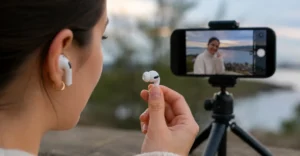
AirPods Camera Remote: Apple users who do not own an Apple Watch now have another convenient way to control their iPhone camera remotely. Through the AirPods Camera Remote feature, supported AirPods models can function as a wireless shutter release, allowing users to capture photos or start video recordings without physically touching their iPhone.
The feature was introduced as part of Apple’s recent iOS updates and is designed to make taking selfies, group photos, and remote shots easier. Instead of relying on a timer and rushing into position before the shutter activates, users can trigger the camera directly from their AirPods when ready.
What you need to use AirPods Camera Remote
Before enabling the feature, users must ensure they have compatible hardware and software.
Requirements include:
- An iPhone running the latest version of iOS. At the time of writing, that version is iOS 26.5.1.
- One of the following supported AirPods models:
- AirPods Pro 3
- AirPods Pro 2
- AirPods 4
- AirPods Max 2
Older AirPods models, including the original AirPods Pro, do not support the Camera Remote functionality.
How to enable AirPods Camera Remote
Apple ships the feature disabled by default, meaning users need to activate it manually through Settings.
Follow these steps:
- Open the Settings app on your iPhone.
- Tap the name of your connected AirPods.
- If the AirPods menu does not appear, open the AirPods charging case to reconnect them.
- Scroll down to the Camera Control section.
- Select Camera Remote.
- Choose either Press Once or Press and Hold as your preferred camera control action.
Once enabled, users can launch the Camera app and use the assigned AirPods gesture to take a photo or start and stop video recording.
Important limitations to know
For the feature to work, at least one AirPod must be worn in the ear. The camera controls will not function if the AirPods are simply resting on a desk or being held in hand.
Apple also notes that enabling Camera Remote changes how certain AirPods gestures behave when the Camera app is open.
- Choosing Press Once disables media control gestures while using the camera.
- Choosing Press and Hold disables Siri and listening-mode gestures while the Camera app is active.
Users should consider which controls they use most often before selecting a preferred Camera Remote option.
Read More: AirPods Camera Remote: Control iPhone Camera Remotely
Frequently asked questions
Can AirPods take pictures on an iPhone?
Yes. Supported AirPods models can remotely trigger the iPhone camera after Camera Remote is enabled in Settings.
Do all AirPods support Camera Remote?
No. The feature works only with AirPods Pro 3, AirPods Pro 2, AirPods 4, and AirPods Max 2.
Can AirPods start and stop video recording?
Yes. Once Camera Remote is enabled, AirPods can start and stop video recordings in the Camera app.
Do AirPods need to be worn for Camera Remote to work?
Yes. At least one AirPod must be in your ear for the feature to function.
Conclusion
The AirPods Camera Remote feature offers a practical and convenient way for iPhone users to control their camera without touching their device or relying on an Apple Watch. By enabling a simple setting, users with compatible AirPods models can capture photos, start video recordings, and stop recordings remotely using built-in controls on their earbuds or headphones. This functionality is especially useful for selfies, group photos, content creation, and situations where the iPhone is placed at a distance. While the feature comes with a few limitations related to Siri and media controls, it provides an easy hands-free photography solution. For users running the latest iOS version and supported AirPods, Camera Remote is a useful addition that can enhance everyday photo and video experiences.